In the rapidly evolving landscape of technology, software updates are a double-edged sword. They promise enhanced security and performance but can sometimes introduce unforeseen issues, especially for gamers reliant on high-performance graphics. The recent Windows January 2026 update has sparked considerable concern among Nvidia GPU users, who have reported notable drops in frame rates and other performance hiccups. If you’re facing these challenges, you’re not alone, and there are steps you can take to mitigate the impact.
Understanding the implications of such updates is crucial for maintaining an optimal gaming experience. This article delves into the specifics of the Windows January 2026 update, the issues it may cause with Nvidia GPUs, and practical solutions to restore your gaming performance.
Understanding the January 2026 Windows Update and Its Impact
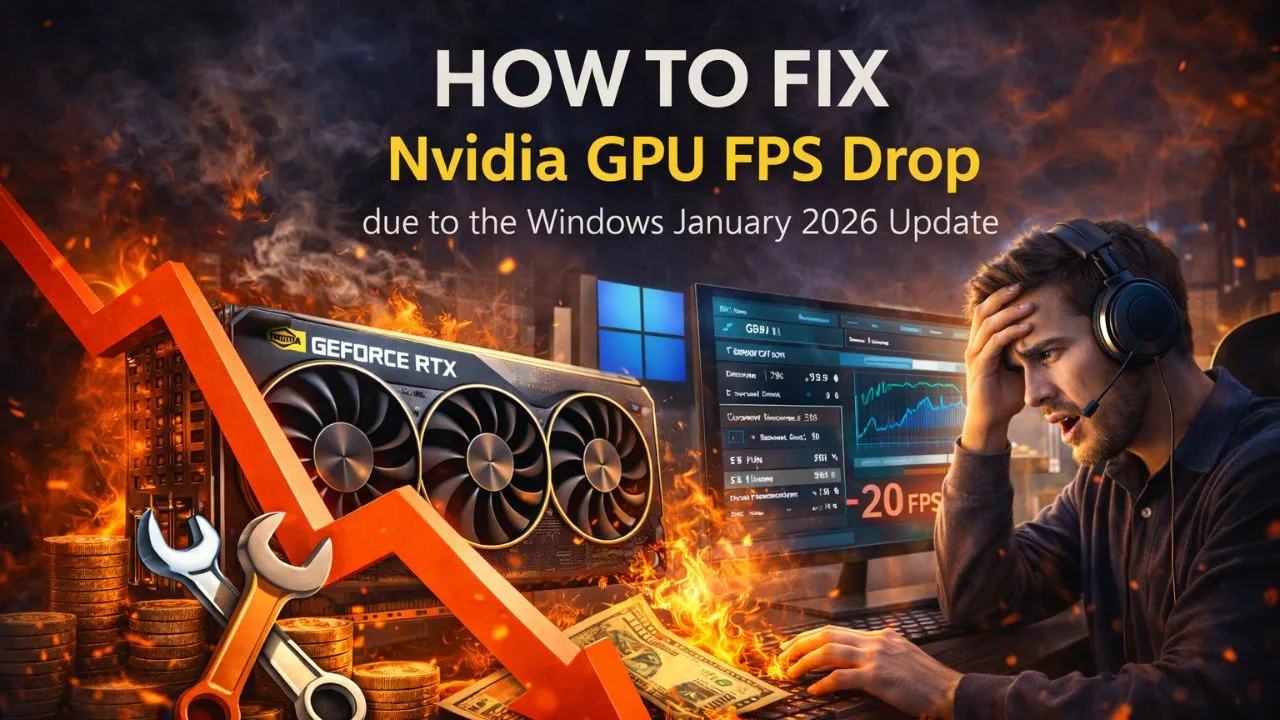
The January 2026 update, designated as KB5074109, is part of Microsoft’s routine security and quality releases for Windows 11 versions 24H2 and 25H2. While such updates are generally beneficial, providing essential fixes for vulnerabilities and stability improvements, this particular update has proven problematic for many users.
Reportedly, gamers have experienced:
- Significant frame rate drops of 15-20 FPS in various titles.
- Frequent black screen freezes that disrupt gameplay.
- Driver crashes, specifically errors related to nvlddmkm.
- General stability issues that affect overall system performance.
While Microsoft has not officially acknowledged these concerns, the gaming community has taken to forums to voice their frustrations, sharing experiences and potential solutions. The update’s security focus means it didn’t include performance tweaks that could mitigate these issues.
Identifying Issues with Nvidia GPUs Post-Update
For users experiencing performance degradation after the January update, identifying the specific issues is paramount. Some of the common problems reported include:
- **Frame Rate Drops**: A noticeable decrease in frames per second making games less fluid.
- **Black Screen Issues**: Sudden blackouts during gameplay can be both alarming and disruptive.
- **Driver Crashes**: Errors related to the graphics driver can lead to crashes, affecting the gaming experience.
- **Stability Problems**: General system instability can lead to unexpected shutdowns or freezes.
The combination of these issues significantly diminishes the gaming experience, prompting users to seek immediate solutions.
Steps to Fix Nvidia GPU Freezing and FPS Drops
If you’re facing issues with your Nvidia GPU after the Windows January 2026 update, there are several methods you can try to alleviate the problems. Here’s a step-by-step guide:
- Uninstall the January Update: This is the most straightforward method. Navigate to the following:
- Settings → Windows Update
- Update History
- Uninstall Updates
- Identify and uninstall the “Security Update for Microsoft Windows (KB5074109)”.
- Restart your PC and check if performance improves.
For some users, the update may not appear in the usual settings. If this is the case, you can:
- Restart into the Windows Recovery Environment.
- Go to Troubleshoot → Advanced Options → Uninstall Updates.
- Select the most recent quality update (KB5074109) and initiate the uninstall.
- Reboot your system.
In many cases, a simple reboot has resolved these performance issues for users. However, if system-level changes have been made by the update, uninstalling it might not be sufficient.
Updating Nvidia Drivers for Optimal Performance
After addressing the Windows update, the next critical step is to ensure that your Nvidia drivers are up-to-date. Follow these steps to install the latest hotfix version:
- Open the NVIDIA GeForce Experience application or visit the Nvidia website directly.
- Download and install the latest Game Ready / Hotfix Driver.
- For a clean installation, use the Display Driver Uninstaller (DDU) in Safe Mode.
- Reboot your PC once more.
- Install the fresh Nvidia drivers that you downloaded.
- Restart your computer again to finalize the installation.
Once these steps are completed, it is advisable to pause Windows updates temporarily to avoid further complications until Microsoft releases a fix. When a Known Issue Rollback (KIT) or an updated version becomes available, you can safely install it.
Monitoring Performance Post-Fix
After implementing the fixes, it’s essential to monitor your system’s performance closely. Key performance indicators include:
- Frame rates in games should return to normal levels.
- Black screen occurrences should be minimized or eliminated.
- Driver stability should remain consistent without crashes.
- Overall system responsiveness should improve.
Utilizing performance monitoring tools can help you track these metrics effectively. Tools like MSI Afterburner or Fraps can provide real-time data on your GPU performance, enabling you to diagnose any remaining issues swiftly.
Community Solutions and Ongoing Discussions
While the official channels may be slow to respond, the gaming community often serves as a valuable resource for troubleshooting. Forums, social media, and gaming subreddits can provide a wealth of knowledge and shared experiences from others facing similar issues.
Some community-driven solutions have included:
- Adjusting graphics settings in games to lower demands on the GPU.
- Reverting to previous driver versions if the latest ones continue to cause issues.
- Exploring alternative gaming modes or settings that prioritize stability over graphics quality.
Engaging with these discussions can also keep you informed about any new fixes or updates released by Nvidia or Microsoft.
Conclusion: Staying Prepared for Future Updates
Staying informed about the implications of software updates is crucial for gamers who rely on consistent performance. Regularly checking for driver updates and engaging with community discussions can help mitigate potential issues. As technology continues to evolve, being proactive can ensure that your gaming experience remains seamless and enjoyable.