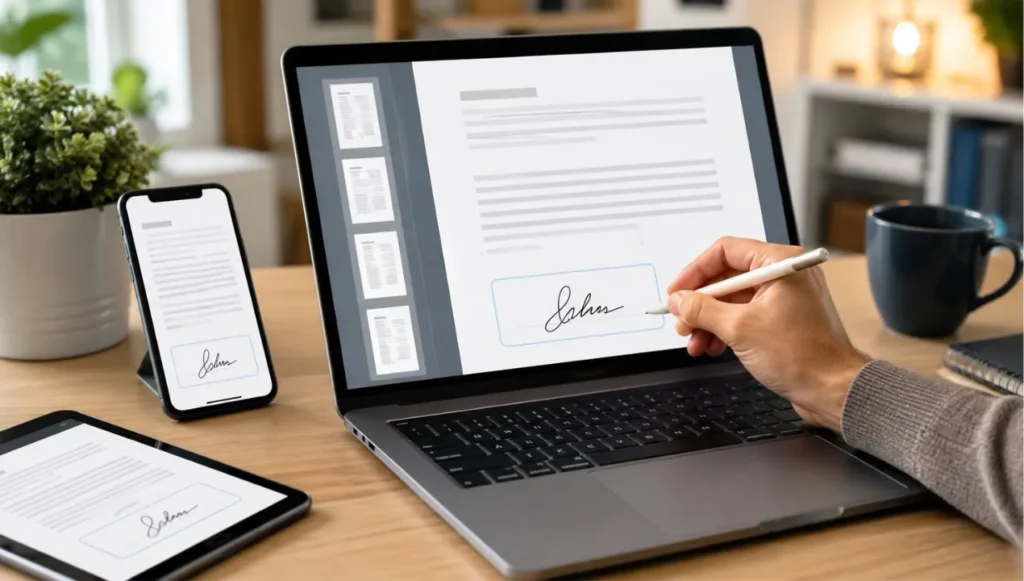
Signing documents used to be a slow process. You had to print the file, sign it with a pen, scan it again, save it, and then send it back by email. That routine wasted paper, time, ink, and sometimes caused delays when the document was urgent. Today, signing a PDF online is one of the easiest ways to handle forms, contracts, letters, authorizations, invoices, certificates, applications, and many other documents without leaving your browser.
The best part is that you do not need to install complicated software. You can sign a PDF online from a computer, tablet, or phone, and the process usually takes only a few minutes. Whether you need to draw your signature, upload an image of your handwritten signature, or type your name in a signature style, an online PDF signing tool can help you complete the document quickly and professionally.
In this guide, you will learn how to sign a PDF online, what options are available, when it is useful, what mistakes to avoid, and how to make your signed PDF look clean and ready to send.
What Does It Mean to Sign a PDF Online?
Sign PDF online means adding your signature directly to a PDF document using a web-based tool. Instead of printing the document and signing it by hand, you upload the PDF to an online platform, place your signature where it belongs, and then download the signed version.
This type of signature is commonly used for everyday documents such as permission letters, business forms, school files, job applications, delivery confirmations, service agreements, and personal authorizations. In many cases, an online signature is enough to show that you reviewed and accepted the content of the document.
There are different ways to sign a PDF online. You can draw your signature with your mouse, trackpad, finger, or stylus. You can also upload a photo or PNG image of your real signature. Some tools allow you to type your name and convert it into a signature-style format. Each option has its own purpose, but all of them help you avoid printing and scanning.
Why Signing PDFs Online Is So Useful
The biggest advantage of signing PDFs online is convenience. You can finish the process from anywhere, even if you do not have access to a printer or scanner. This is especially helpful when someone sends you a document that must be signed quickly.
Online PDF signing also saves money. You do not need paper, ink, envelopes, or courier services for simple documents. For freelancers, students, workers, small business owners, and remote teams, this can make document handling much faster and more practical.
Another benefit is organization. When you sign a PDF online, you keep the file in digital format from start to finish. That means you can save it on your computer, upload it to cloud storage, attach it to an email, or send it through a messaging app without creating physical copies.
It also improves the appearance of your documents. A clean digital signature placed correctly on the PDF often looks more professional than a scanned page with shadows, marks, blurry text, or crooked alignment.
How to Sign a PDF Online Step by Step
Signing a PDF online is usually simple. Although each tool may look slightly different, the general process is almost always the same.
First, choose a reliable online PDF signing tool. Open the tool in your browser and look for the option to upload your PDF file. Select the document from your computer or phone and wait for it to load.
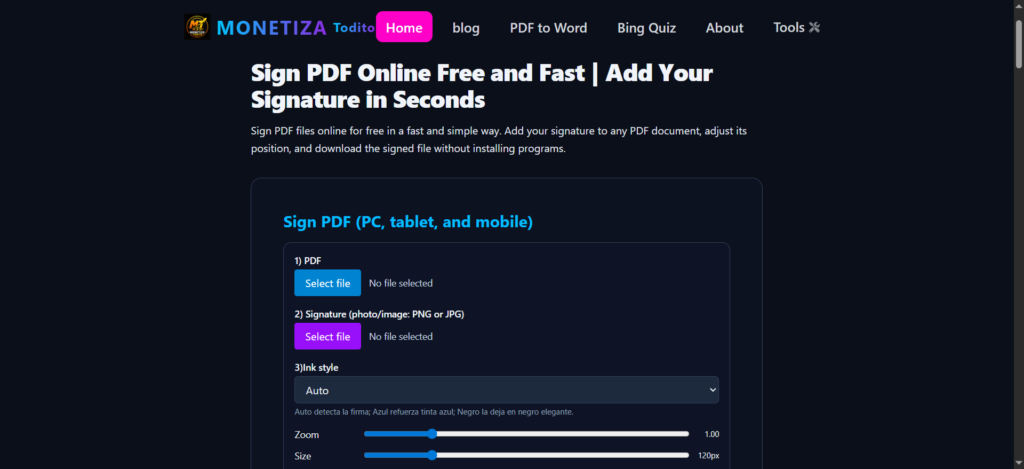
Once the PDF opens inside the editor, find the page where the signature is required. Some documents have a clear signature line at the bottom. Others may require your signature next to your name, under a declaration, or inside a specific box.
Next, create or upload your signature. If you want a handwritten look, you can draw it using your mouse, touch screen, or stylus. If you already have a signature image, upload it and place it over the signature area. Make sure the image has a transparent background if possible, because that makes it blend naturally with the document.
After adding the signature, resize it so it looks realistic and proportional. Avoid making it too large or too small. Move it carefully until it sits exactly where it should be. If the document requires a date, full name, initials, or additional text, add those details before downloading.
Finally, save or download the signed PDF. Open the file again to check that the signature appears correctly. Before sending it, confirm that every required field is completed and that the document is readable.
Best Ways to Add a Signature to a PDF
There is no single perfect way to sign a PDF online. The best option depends on the type of document and the result you want.
Drawing your signature is one of the fastest methods. It works well when you are using a tablet, phone, or laptop with a touch screen. The signature may not look exactly like your real handwriting if you draw it with a mouse, but it is practical for quick documents.
Uploading a signature image gives a more authentic result. You can sign on a blank piece of paper, take a clear photo, remove the background if needed, and upload it to the PDF signing tool. This method is useful when you want your digital signature to look close to your real handwritten signature.
Typing your name is the simplest option, but it may look less personal. It can work for informal confirmations, internal forms, or documents where a typed signature is accepted. However, for important documents, many people prefer to use a drawn or uploaded handwritten signature.
Adding initials is also helpful when a document has multiple pages or sections that require confirmation. Some agreements ask for initials on each page and a full signature at the end.
When Should You Sign a PDF Online?
Signing a PDF online is useful in many daily situations. You may need it when applying for a job, signing a work form, approving a school document, sending a business proposal, completing a rental form, or confirming a service request.
It is also helpful for remote work. Many companies now send documents digitally, and employees or contractors often need to sign them without visiting an office. With an online PDF signing tool, the process becomes faster and easier for both sides.
Students can use online PDF signing for forms, authorizations, scholarship documents, internship files, or academic requests. Small business owners can use it for invoices, quotes, agreements, supplier forms, and customer approvals.
It is especially useful when time matters. If someone sends you a document and expects it back the same day, signing it online can save you from looking for a printer, scanner, or copy center.
Is Signing a PDF Online Safe?
Signing a PDF online can be safe when you use a trustworthy tool and handle your files carefully. Before uploading any document, think about the type of information it contains. A simple permission letter is not the same as a document with private financial, medical, legal, or identity details.
For sensitive documents, choose tools that clearly explain how files are processed and avoid uploading documents to unknown or suspicious websites. Also, avoid using public Wi-Fi when signing private files. A secure connection is always better.
After downloading the signed PDF, store it in a safe place. If the document contains personal information, do not leave it in a shared computer or public downloads folder. Rename the file clearly so you can find it later, but avoid adding unnecessary private details to the file name.
It is also a good idea to keep an original unsigned copy. That way, if you make a mistake while signing or need to update the document, you can start again without problems.
Online Signature vs Digital Signature
Many people use the terms “online signature,” “electronic signature,” and “digital signature” as if they mean the same thing, but they are not always identical.
An online signature usually means a visible signature added to a PDF using an online tool. It may be drawn, typed, or uploaded as an image. This is enough for many everyday documents.
A digital signature, in a stricter technical sense, may include encryption, certificate validation, identity verification, and document integrity protection. This type of signature is often used in more formal business, legal, or government processes.
For most personal and common business uses, adding a visible signature to a PDF online is practical and accepted by many organizations. However, for highly official documents, the requirements may depend on the country, institution, or type of agreement. When a document is very important, it is always better to confirm what kind of signature is required before sending it.
How to Make Your PDF Signature Look Professional
A professional-looking signature should be clear, well-sized, and placed correctly. If you upload a signature image, try to use one with good contrast. A dark signature on a white or transparent background usually works best.
Avoid using a blurry photo. If your signature image has shadows, wrinkles, or background marks, it can make the document look messy. For a cleaner result, sign on plain white paper with a dark pen, take the photo in good lighting, and crop it close to the signature.
Size also matters. A signature that is too large can look unprofessional, while one that is too small may be hard to see. Try to match the size of the signature line or the surrounding text.
Placement is just as important. Make sure the signature does not cover important words, dates, checkboxes, or labels. It should sit naturally in the space provided.
If the document asks for your printed name, date, or ID number, complete those fields carefully. A signed PDF with missing information may be rejected or returned for correction.
Common Mistakes to Avoid When Signing PDFs Online
One common mistake is signing the wrong version of the document. Before adding your signature, check that the PDF is the final version. If someone updates the document later, you may need to sign it again.
Another mistake is placing the signature on the wrong page. Some documents have several signature areas, and it is easy to miss one. Review the entire file before downloading the final copy.
People also forget to add the date. Many forms require both a signature and a date to be complete. If the date field is empty, the document may look unfinished.
Using a low-quality signature image is another problem. A signature with a messy background can make the document look unprofessional. A clean image improves the final result.
Finally, avoid sending the document without checking it first. Always open the signed PDF after downloading it. Make sure the signature appears, the file opens correctly, and nothing moved out of place.
Can You Sign a PDF Online From a Phone?
Yes, signing a PDF online from a phone is possible and often very convenient. In fact, a phone can make the process easier because you can draw your signature directly with your finger.
To sign from a phone, open the PDF signing tool in your mobile browser, upload the file, and use the signature option. Zoom in on the signature area so you can place it accurately. After signing, download the final PDF and share it by email, WhatsApp, cloud storage, or any other app you use.
The main challenge on a phone is screen size. For long documents, it may take more time to move between pages and place fields correctly. Still, for simple forms and quick signatures, mobile signing is very useful.
Can You Sign a PDF Online Without Installing Anything?
Yes. One of the main reasons people prefer online PDF signing tools is that they work directly from the browser. You do not need to install desktop software, extensions, or heavy applications.
This is helpful when you are using a borrowed computer, a school laptop, a work device, or a phone with limited storage. You simply open the tool, upload the PDF, sign it, and download the result.
Browser-based signing is also easier for people who are not very technical. The process is visual and direct: upload, sign, place, save. That simplicity is what makes online PDF signing so popular.
Who Needs an Online PDF Signing Tool?
Almost anyone who handles documents can benefit from an online PDF signing tool. Freelancers can sign client agreements and project approvals. Business owners can sign invoices, contracts, and forms. Students can complete academic documents. Employees can sign HR forms, requests, and internal files.
Real estate workers, consultants, teachers, designers, virtual assistants, accountants, and service providers also use PDF signing regularly. Even for personal tasks, it can help with authorizations, letters, applications, and confirmations.
The more digital your work becomes, the more useful this kind of tool is. Instead of depending on paper, you can complete the signing process in minutes.
Final Thoughts
Signing a PDF online is one of the easiest ways to complete documents without printing, scanning, or installing software. It saves time, keeps your files organized, and helps you send professional-looking documents from almost any device.
The process is simple: upload your PDF, add your signature, place it correctly, complete any extra fields, and download the signed file. Whether you are signing a work form, school document, business agreement, or personal authorization, an online PDF signing tool can make the task faster and cleaner.
For best results, use a clear signature, check the document before sending it, and keep a copy of both the original and the signed version. With the right approach, you can sign PDFs online confidently and avoid the delays of traditional paper-based signing.